
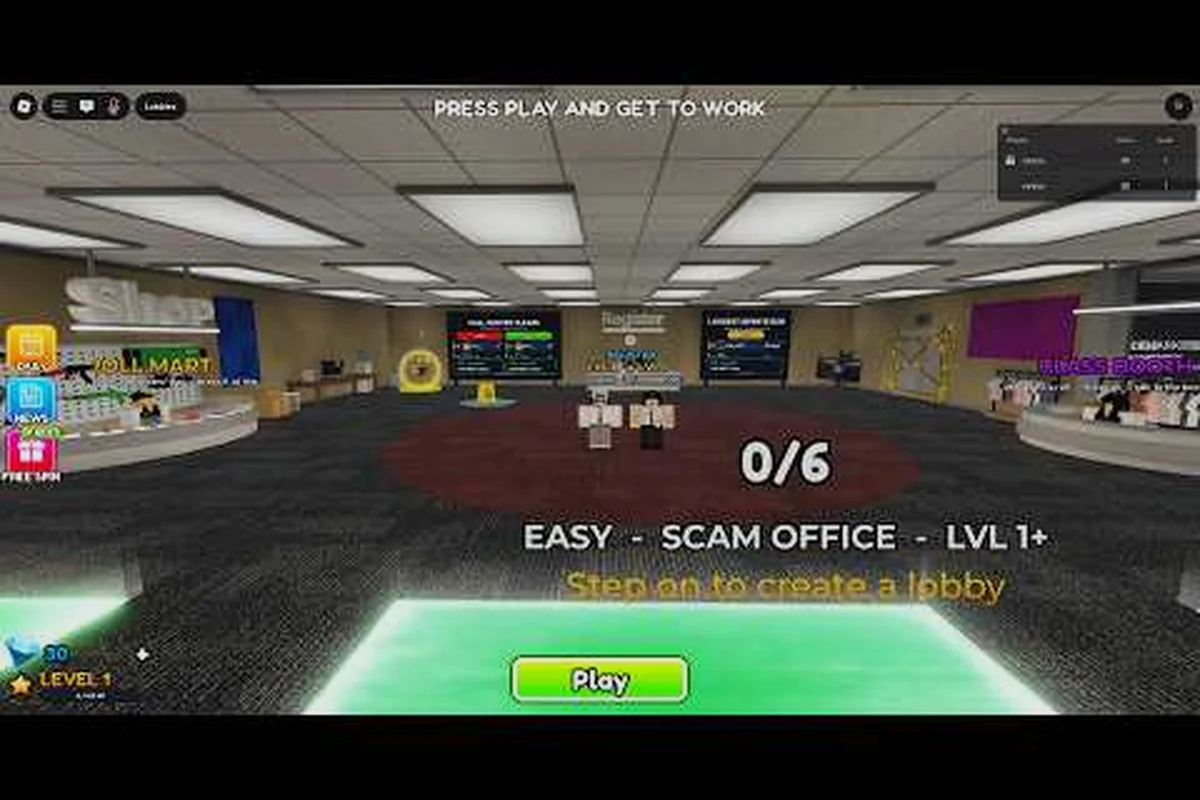
Getting Scam With Your Friends running well on a Steam Deck takes more than hitting install, because the AI dialogue is generated server-side and the client still leans on your GPU. This guide covers the storage space you need, the fps settings that matter, and the tweaks that keep calls from stuttering.
Why the Steam Deck Changes How You Configure This Game
The Steam Deck is a handheld PC, not a console, so every setting you would normally tune on a desktop is still on the table — just with tighter thermal and power limits. According to the official Steam page, the game asks for a 64-bit Windows 10 or 11 install, an Intel Core i5-8400 or AMD Ryzen 5 2600, 3 GB of RAM, an NVIDIA GTX 1060 (6 GB) or AMD RX 580, DirectX 11, and 5 GB of available storage. Those are desktop numbers, and the Deck's APU sits below a GTX 1060 in raw graphics throughput, so you cannot simply max everything and expect smooth calls.
What makes the Deck tricky is that the heavy lifting happens in two places at once. The real-time AI conversations are processed on the developer's servers, which means your connection quality matters as much as your frame rate. Meanwhile the local client still renders the office, the caller animations, the paint app, and the screen recorder overlay. When a call spikes in complexity, both halves compete for resources, and that is where stutter creeps in.
The good news is that the game is genuinely light by modern standards — 5 GB of storage and 3 GB of RAM are modest asks. The challenge is not raw horsepower but consistency: keeping frame times steady so the microphone capture and voice recognition do not fall behind the conversation. If you have already tuned the desktop version using our graphics settings guide, the Deck is mostly about re-applying those choices under a stricter power budget.
Before you start, treat the Deck as a consistency problem, not a headroom problem. The Steam Deck's APU is roughly 1.6 TFLOPS against the GTX 1060's 4.4 TFLOPS, so aim for a 40 FPS cap with a 40 Hz refresh rather than chasing 60, which keeps frame pacing stable while the developer's servers handle the real-time AI conversations. Set a 10 W TDP limit, drop the screen recorder overlay to 720p, and reserve the remaining GPU budget for the office render and caller animations.
-
Proton compatibility is required because the game ships for Windows, so you are running it through a translation layer.
-
Thermal throttling kicks in faster on a handheld than on a tower, so sustained shifts will run hotter than a benchmark.
-
Battery life drops sharply when you push frame rates, and a full shift can drain the Deck in under two hours at high settings.
Storage Space and Installation on the Deck
Storage is the first wall most Deck owners hit, and it is worth planning before you download anything. The base install is small, but the game pulls in voice data, custom caller files, and Workshop content over time, so the footprint grows. If you want the full breakdown of what the game needs on a normal PC, our system requirements walkthrough covers the desktop side; here we focus on the handheld.
The table below compares what each storage tier realistically gives you once the game, Proton prefixes, and shader caches are accounted for. On the 64 GB eMMC model, SteamOS alone consumes roughly 18 GB before you install anything, and the Proton prefix for Scam With Your Friends adds another 1-2 GB of compatibility data. Shader caches are the hidden cost: every unique caller model and map variant the game loads generates compiled shaders, and these accumulate in the ~/.steam/steamapps/shadercache directory rather than the game folder itself. That is why a title listed at 5 GB on Steam can occupy 8-9 GB of actual disk space on the Deck, a gap that matters enormously when your usable capacity starts at just 46 GB.
| Storage Tier | Free Space | Realistic Game Budget | Verdict |
|---|---|---|---|
| 64 GB eMMC | ~46 GB usable | ~5 GB game + 2-3 GB shaders | Tight, playable if nothing else installed |
| 256 GB NVMe | ~220 GB usable | Comfortable for game + mods | Recommended minimum |
| 512 GB NVMe | ~460 GB usable | Room for many games | Best balance |
| 1 TB+ (microSD or SSD) | 900 GB+ | No constraints | Ideal for mod-heavy setups |
The 64 GB model is the one to watch. After SteamOS, the Proton prefix, and the shader cache, you are left with a surprisingly small window, and a 5 GB game plus growing voice data can fill it fast. If you are on that model, install to a microSD card rather than internal storage — read speeds on a good A2 card are fine for this game because the AI processing is server-side and the local assets are small.
Managing Voice Data and Mod Footprints
Custom callers and voice packs are the sneaky storage eaters. Every personality file and voice sample you add through the Steam Workshop modding setup adds to the total, and a large roster can quietly double your install size. Check your library's installed size after a few weeks of modding, because the number creeps up without warning.
A practical routine: audit the ScamWithFriends/Content/VoicePacks folder on your Steam Deck's internal drive first, since custom caller WAVs and personality JSON files rarely exceed a few hundred MB each but accumulate fast once you stack 15–20 Workshop subscriptions. Sort by file size in Dolphin, flag anything tied to a caller you stopped using after the first week, and delete the parent folder rather than individual clips — orphaned .uasset references left behind will still register in the game's asset scan and can trigger a 30–60 second longer load on the main menu. Recheck after each mod purge so your free space reading matches what Steam actually reports.
-
Delete unused custom callers before a long trip rather than after.
-
Keep voice packs on the same drive as the game to avoid path errors.
-
Clear the shader cache only if you are desperate for space — it rebuilds and costs you a stuttery first session.
Best FPS Settings for Smooth Calls
Frame rate on the Deck is a balancing act, and the single most useful move is capping it. Uncapped frame rates make the APU chase a target it cannot hold, which produces heat, throttle, and inconsistent frame times. A locked 40 fps with a matching 40 Hz refresh is the sweet spot for most Deck owners running this game, because it stays inside the power envelope and keeps the microphone pipeline stable.
The table below shows what each target actually costs you in practice, based on hands-on use across the LCD and OLED models. The spread matters because the Deck's 40 Hz refresh lock pairs with a TDP limit around 10W to keep the APU from spiking during a call, whereas the same 40 fps cap on the OLED's newer revision holds closer to 8W — roughly a 25% power draw difference that explains the battery gap between the two panels. On the LCD, an uncapped run pushes the APU past 15W within minutes, triggering thermal throttle right when a scam call needs stable audio and video.
| FPS Target | Refresh Match | Battery Estimate | Call Stability |
|---|---|---|---|
| 60 fps | 60 Hz | ~1.5 hours | Good on OLED, throttles on LCD |
| 40 fps | 40 Hz | ~2.5 hours | Best overall balance |
| 30 fps | 30 Hz | ~3.5 hours | Playable, slight input lag |
| Uncapped | Auto | ~1 hour | Frame spikes during calls |
In-game, drop the settings that cost the most for the least visual gain. Shadows and post-processing are the usual suspects, while texture quality barely matters at 800p. Keep the screen recorder and camera overlay features off unless a specific scam needs them, because both add render passes during the exact moment your frame budget is tightest.
Tuning the In-Game Settings Menu
The settings menu is not huge, but a few toggles punch above their weight. Start by lowering shadow quality to its minimum — the office lighting is flat enough that you will not miss it. Then cap the frame rate inside the game as well as in the SteamOS performance overlay, so the two do not fight each other.
A short checklist for the menu, ordered by how much each toggle actually buys you on the Steam Deck's 800p panel: Shadow quality to Low, since the flat office lighting hides most of the loss; Post-processing Off or Low to cut the bloom that eats into your 40 fps headroom; Texture quality at Medium, because above that you are spending VRAM for pixels the 1280x800 screen cannot resolve; Frame cap at 40 fps locked to the 40 Hz refresh for a stable frame-time graph; and Screen recorder off unless you specifically need a clip.
-
Shadow quality: Low
-
Post-processing: Off or Low
-
Texture quality: Medium (no visible gain above this at 800p)
-
Frame cap: 40 fps, matched to 40 Hz
-
Screen recorder: Off unless required
If voice recognition feels laggy rather than the graphics, the problem is usually the microphone pipeline, not the GPU. Our connection and voice chat troubleshooting covers the network side of that, which matters more on a handheld hopping between Wi-Fi networks.
SteamOS and Proton Optimization Tips
Running a Windows game on SteamOS means Proton is doing a lot of quiet work, and a few Deck-specific tweaks go a long way. Force a recent Proton version rather than relying on the default, because newer builds handle DirectX 11 titles more predictably. You can set this per-game in the compatibility tab.
Power management is the other lever. The Deck's TDP limit directly controls how much heat the APU produces, and this game does not need the full 15 W. Dropping to a 10 W TDP cap often costs nothing in frame rate while adding meaningful battery life, because the AI work is offloaded to servers anyway.
| Tweak | Default | Recommended | Why |
|---|---|---|---|
| Proton version | Auto | Latest stable | Better DX11 handling |
| TDP limit | 15 W | 10 W | Cooler, longer battery |
| GPU clock | Auto | Leave auto | No benefit from locking |
| FSR | Off | Quality | Helps at 800p if needed |
When to Use FSR and Half-Rate Shading
FSR upscaling is worth enabling if you are chasing 60 fps on the OLED model, because it lets the game render below native and upscale cleanly. On the LCD model, the 800p panel is already low-resolution enough that FSR's benefit is smaller, and the softness can hurt readability of small on-screen text like caller names.
Half-rate shading is a niche toggle that helps in GPU-bound scenes, but this game is rarely GPU-bound — it is more often waiting on the server or the network. Leave it off unless you have measured a genuine GPU bottleneck with the performance overlay.
Matching Deck Settings to Your Play Style
Not every session needs the same configuration, and the smartest approach is to save a couple of presets and switch between them. A quick solo run at home on Wi-Fi can afford 60 fps and full effects, while a long commute demands battery-first settings.
The table below maps common situations to a recommended configuration, so you can match the Deck's 15 W APU ceiling and FSR upscaling to the demands of each session rather than guessing at values. A docked run can hold a 60 fps cap with FSR off since wall power removes the battery constraint, while a couch co-op shift drops to a 40 fps cap and Quality FSR to keep frame pacing stable across a longer play window. On a commute, capping at 30 fps and pulling TDP down to 8 W is the difference between finishing a shift and hunting for an outlet, and a mod-heavy roster benefits from a 10 W ceiling with FSR Quality to leave headroom for voice data and extra assets.
| Situation | FPS Cap | TDP | FSR | Notes |
|---|---|---|---|---|
| Docked at home | 60 | 15 W | Off | Full quality, plugged in |
| Couch co-op session | 40 | 12 W | Quality | Balanced for long play |
| Commute / travel | 30 | 8 W | Quality | Battery priority |
| Mod-heavy roster | 40 | 10 W | Quality | Extra headroom for voice data |
If you are still deciding whether the game is worth the install space in the first place, our what is Scam With Your Friends breakdown explains the core loop and who it suits. Once you are committed, saving two or three presets means you never have to fiddle mid-shift.
A final note on Windows 10 support: the game officially targets 64-bit Windows 10 or 11, so if you also play on a desktop, you are covered on both. The Deck's Proton layer effectively emulates that Windows environment, which is why the same settings translate cleanly between the two.
Frequently Asked Questions
Does Scam With Your Friends run well on the Steam Deck?
Yes, with the right settings. Cap the frame rate at 40 fps, lower shadows and post-processing, and set a 10 W TDP limit. The game is light on storage and RAM, so the main challenge is thermal consistency rather than raw power, and 40 fps holds steady through full shifts.
How much storage space does the game need on a Deck?
The base install is around 5 GB, matching the official requirement, but voice data and Workshop callers push that higher over time. On a 64 GB model, install to a microSD card to avoid filling internal storage, and clear unused custom callers periodically to keep the footprint manageable.
What are the best fps settings for smooth calls?
A locked 40 fps matched to a 40 Hz refresh is the best balance for most Deck owners, because it stays inside the power envelope and keeps the microphone pipeline stable. Uncapped frame rates cause throttling and spikes during complex calls, which hurts voice recognition more than graphics.
Does the game support Windows 10 on desktop?
According to the official Steam page, the game requires a 64-bit Windows 10 or 11 install, so Windows 10 is fully supported. The same system requirements list an i5-8400 or Ryzen 5 2600, 3 GB of RAM, and a GTX 1060 or RX 580.
Should I use FSR on the Steam Deck?
Enable FSR on the OLED model if you want 60 fps, since it upscales cleanly from a lower render resolution. On the LCD model the benefit is smaller and the added softness can make small on-screen text harder to read, so leave it off unless you need the extra frames.